
Launch TermiGram where the conversation already happens—no separate desktop client or tunnel setup.
Server control · inside Telegram
TermiGram
A real SSH terminal and SFTP workspace inside Telegram. Connect, manage files, run commands and share controlled access—without leaving the messenger.
Real SSH sessionsSFTP workspaceProtected credentials
Scroll to connect
A clear five-step path
From first message to a live server—in five clear steps.
Start in Telegram, add a server once, then move naturally between terminal work, files and controlled sharing. Each card below is the next step.
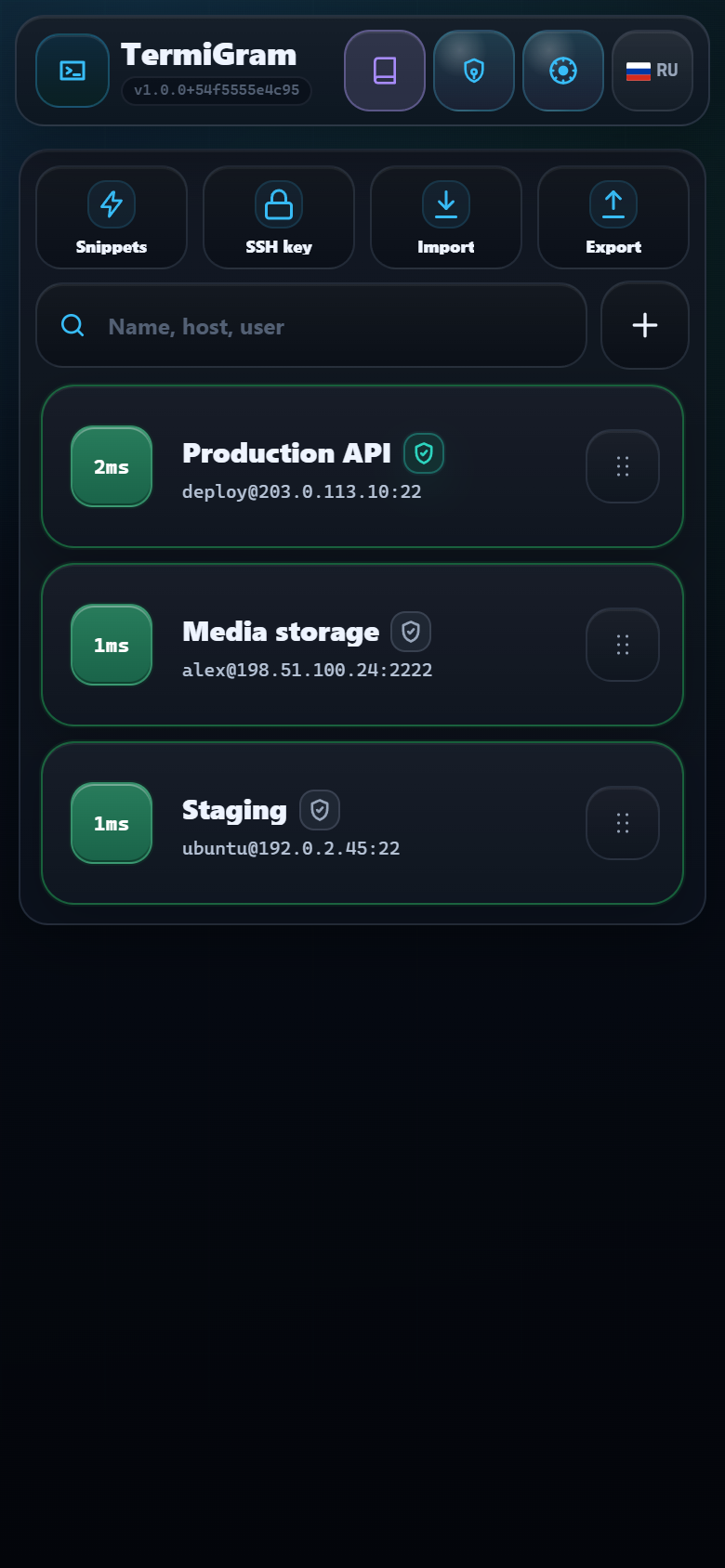
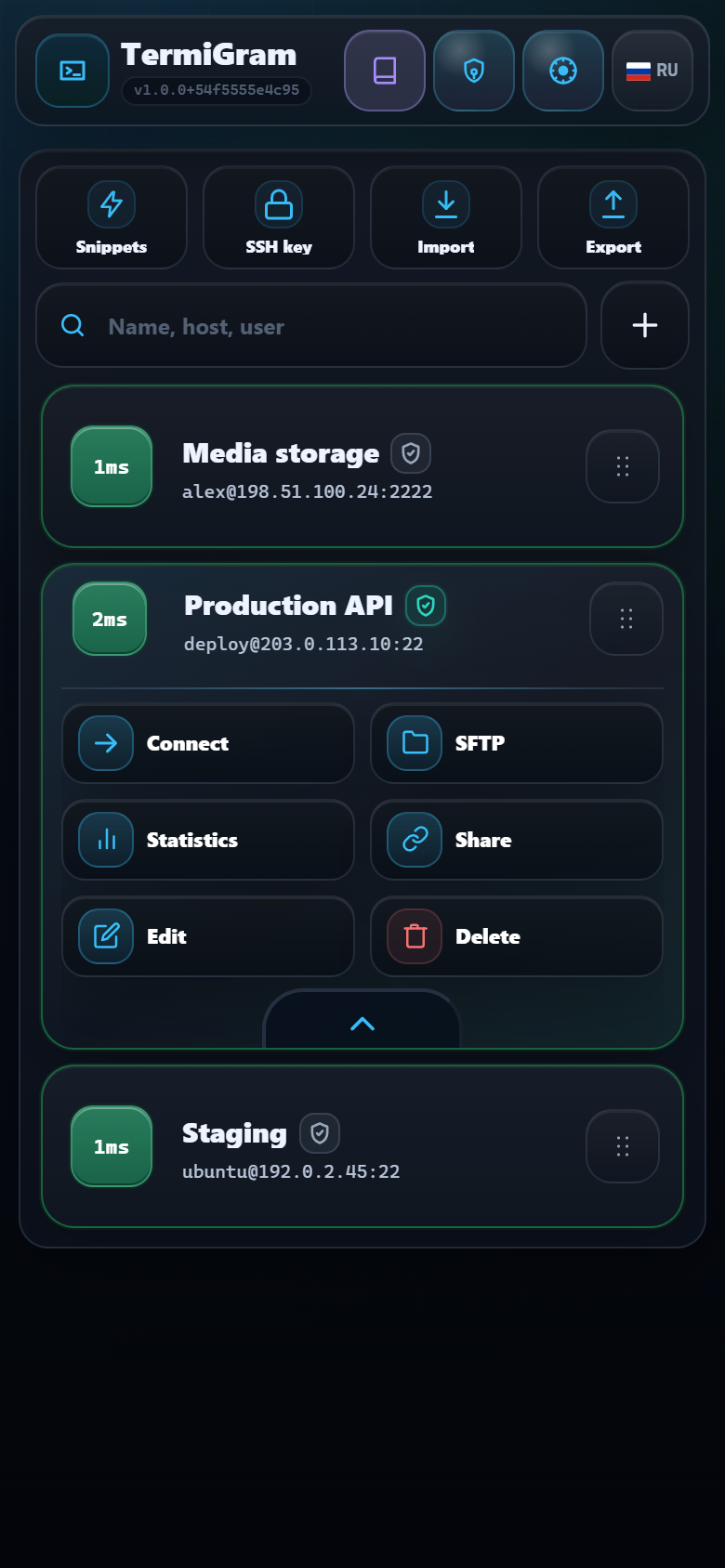
Add the host and credentials once, then keep every machine organised and ready for the next session.
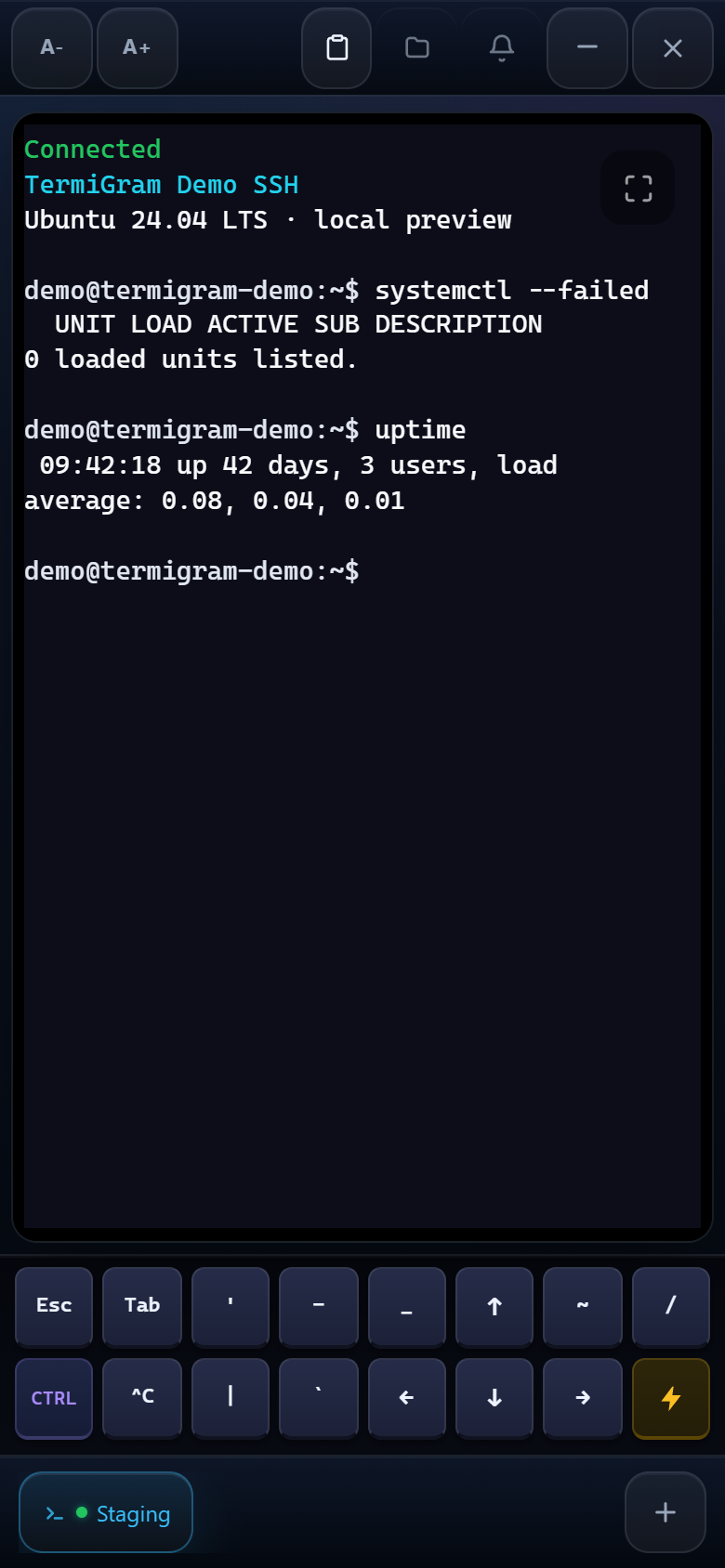
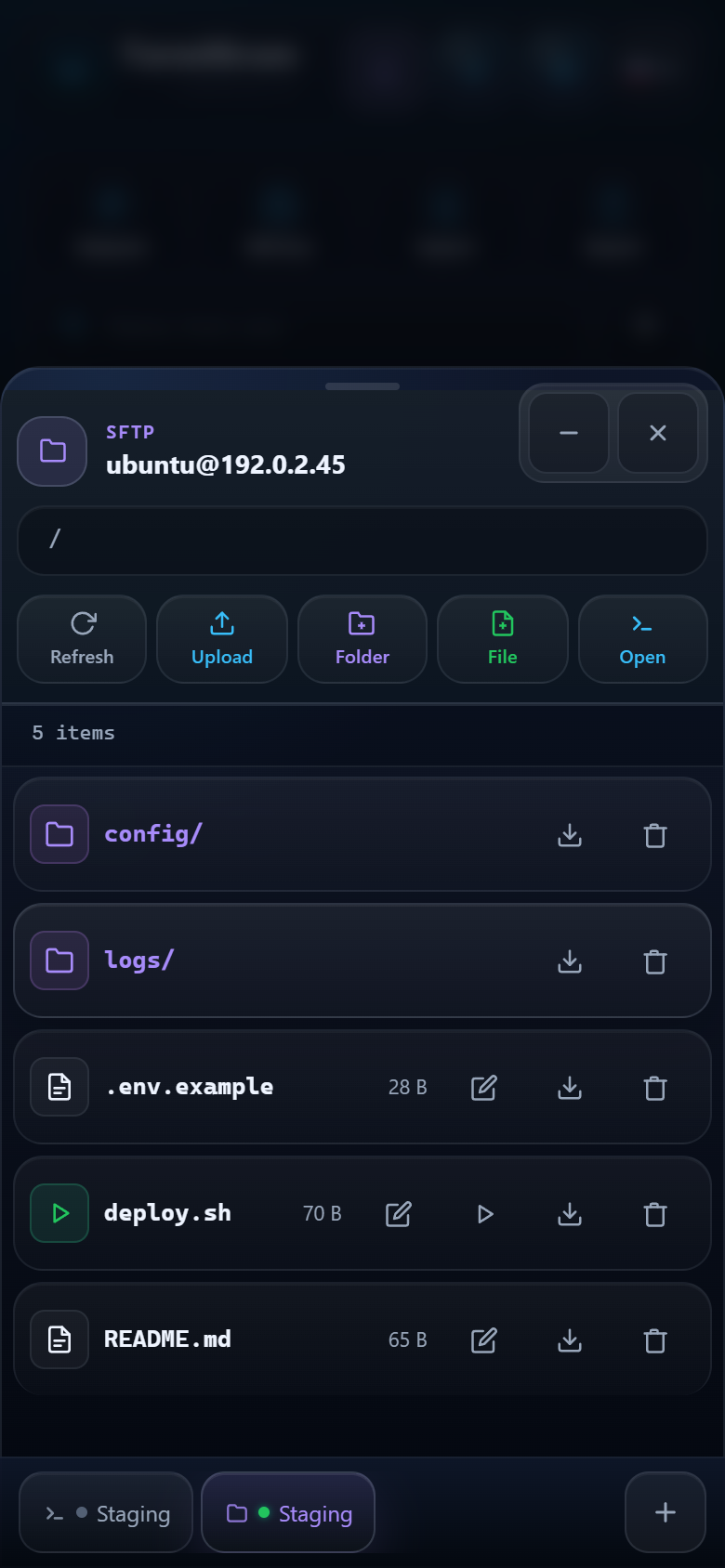
Run commands, inspect their output, then switch straight to the files they affect without losing context.
Use snippets, parallel windows and mobile controls to keep repeat tasks fast and your active work visible.
Grant Full or Guest access with limits, then revoke it the moment the job is done.
Your fleet.
One tap away.
Search, ping, inspect statistics and open the exact tool you need. Password and SSH-key profiles stay organized and movable.
A real shell.
In your pocket.
Interactive SSH sessions with mobile control keys, clipboard actions, font controls, fullscreen and notifications.
Files move
with you.
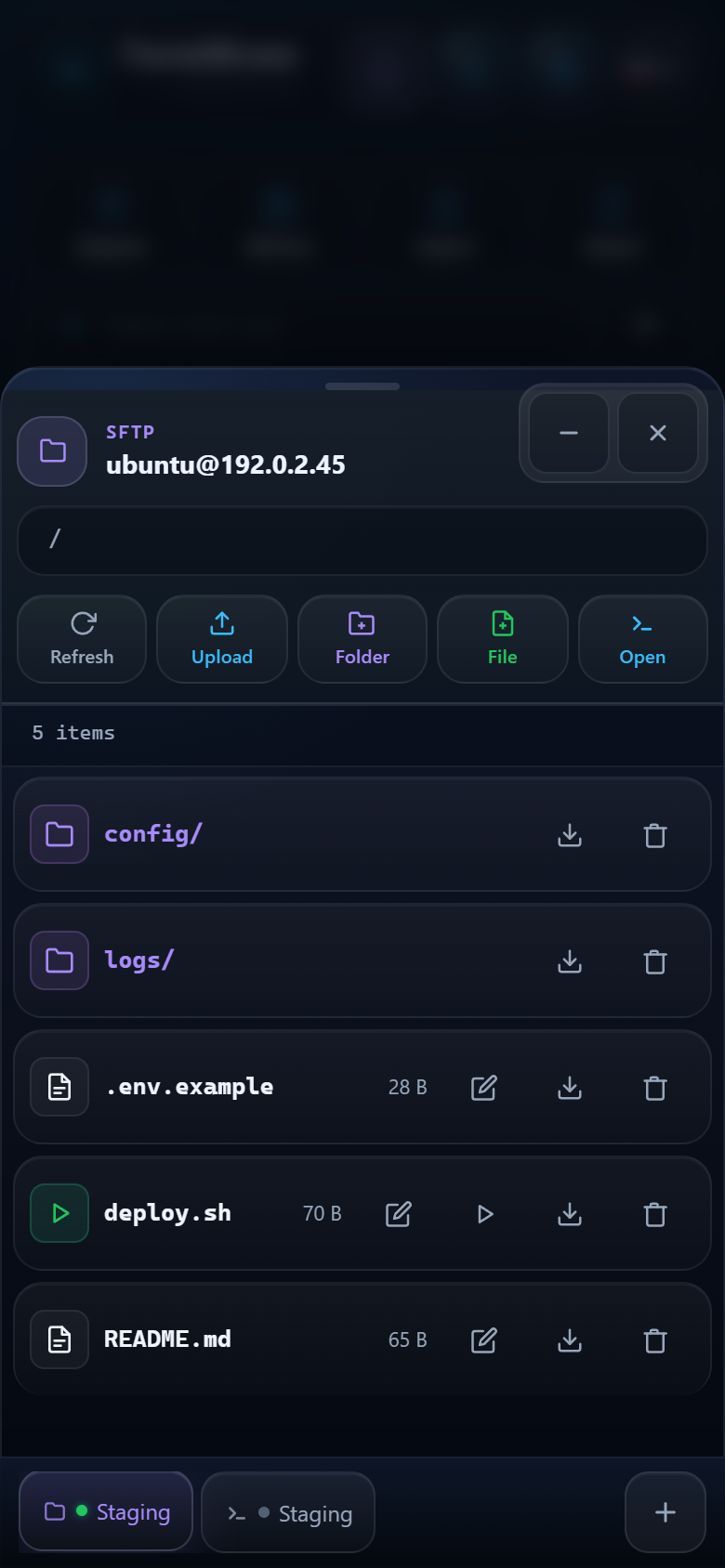
Navigate folders, upload, download, edit, rename and run files from an interface built for a small screen.
Repeat less.
Ship faster.
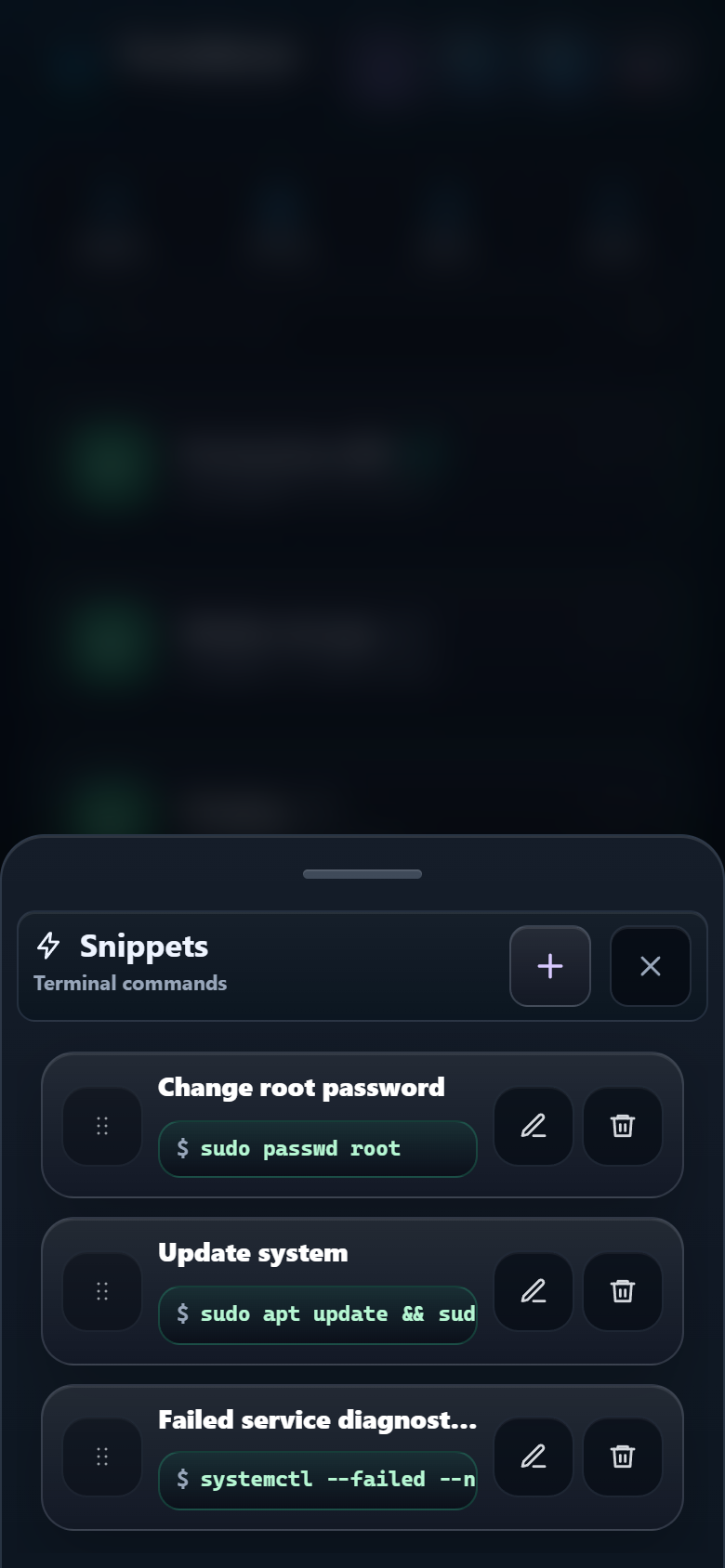
Keep your everyday commands close. Add, edit, reorder and run a snippet directly in the active terminal.
More context.
Less friction.
Run multiple terminal and SFTP windows, minimize them and switch with movable bottom tabs.
Built around real work
Power, without the desktop baggage.
Each layer is designed to make remote server work clearer, faster and more controlled from Telegram.
Terminal + SFTP
Move between command line and files without losing your server context. Run a command, inspect the result and edit the file it produced in one continuous workspace.
Access on your terms
Create Full or Guest access, define when it becomes active and when it expires, then revoke it from the same familiar workspace whenever the task is complete.
Master Password
Add a user-controlled local layer to saved SSH credentials. See the protection state at a glance before you connect, share or hand a device to someone else.
Help where you work
Open documentation, get focused AI guidance for TermiGram, SSH and Linux, or follow a clear path to human support—without breaking the flow of work.
AI / DOCS
Controlled Share Links
Share access,
not uncertainty.
Choose how another person connects, control the active window, and revoke the link from one place.
A separate profile
Connection data creates a recipient-side server profile for continued work.
- Independent recipient profile
- Activation and expiry controls
- Copy, send and revoke
The secret stays hidden
Controlled access remains available only while the Share Link is active.
- Credentials are not exposed
- Time-bounded access
- Revoke from your own workspace
FAQ
Clear answers. No hacker mythology.
Is this a real SSH terminal?
Yes. TermiGram runs real interactive SSH sessions inside Telegram, with mobile controls, clipboard actions, snippets, fullscreen and notifications.
Can I manage files as well?
Yes. The SFTP workspace supports folder navigation, uploads, downloads, create, edit, rename, run and delete actions.
Does Guest Access reveal my password or key?
No. Guest Access is designed to keep the secret hidden while providing controlled access during the link’s active period.
What does Master Password protect?
It is an optional local protection layer for saved SSH credentials. If it is lost, protected credentials must be recreated or saved again.